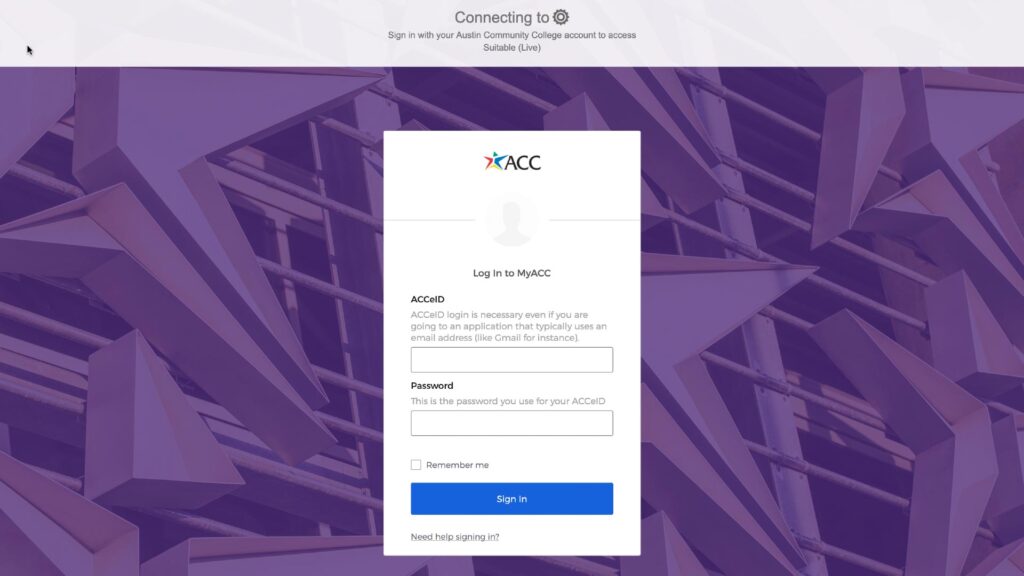
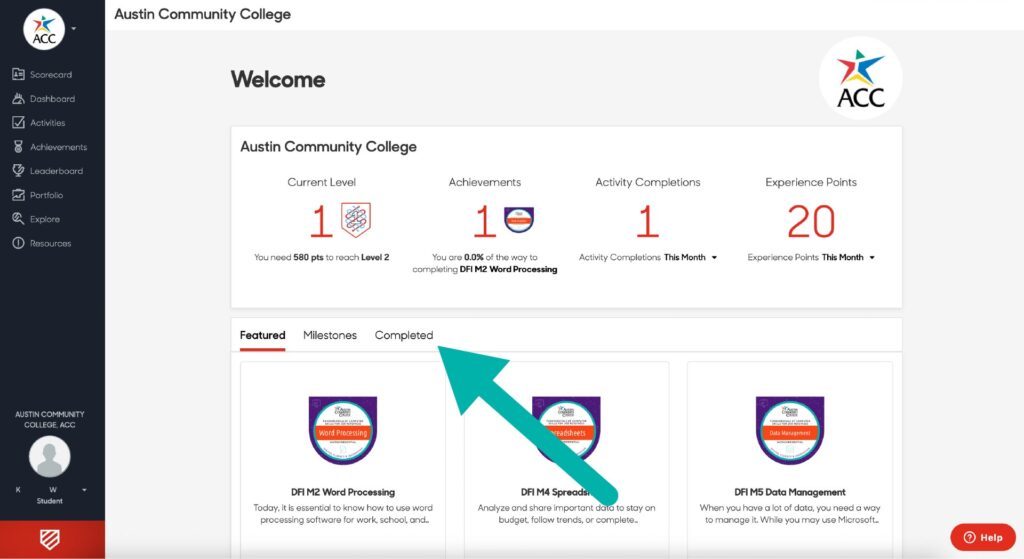
2. Navigate to your completed badges on Suitable homepage
Click on the “Completed” tab option to view your earned badges.
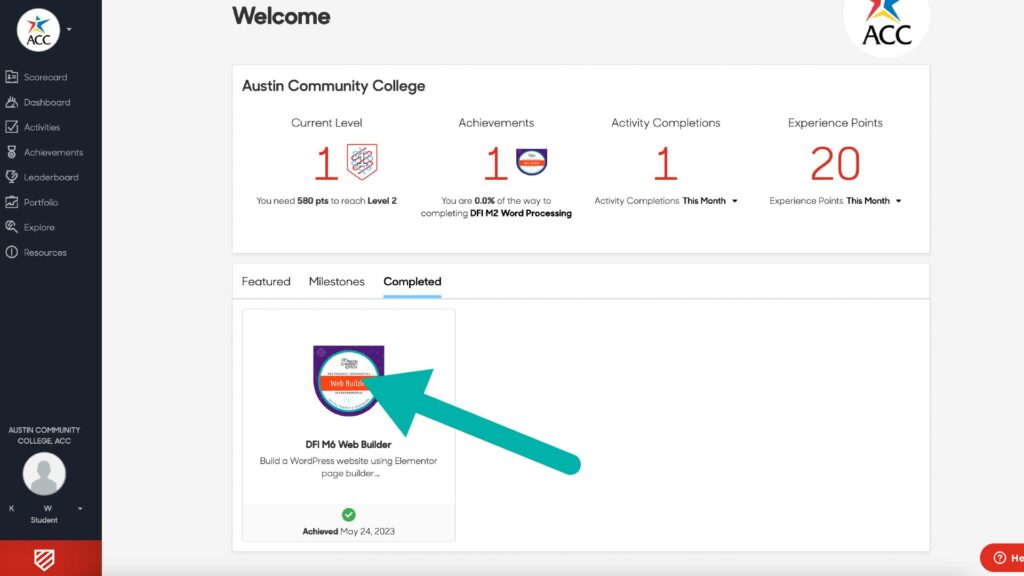
3. Select the badge you want to view and share.
Click on the badge to view your badge information and access the share option.
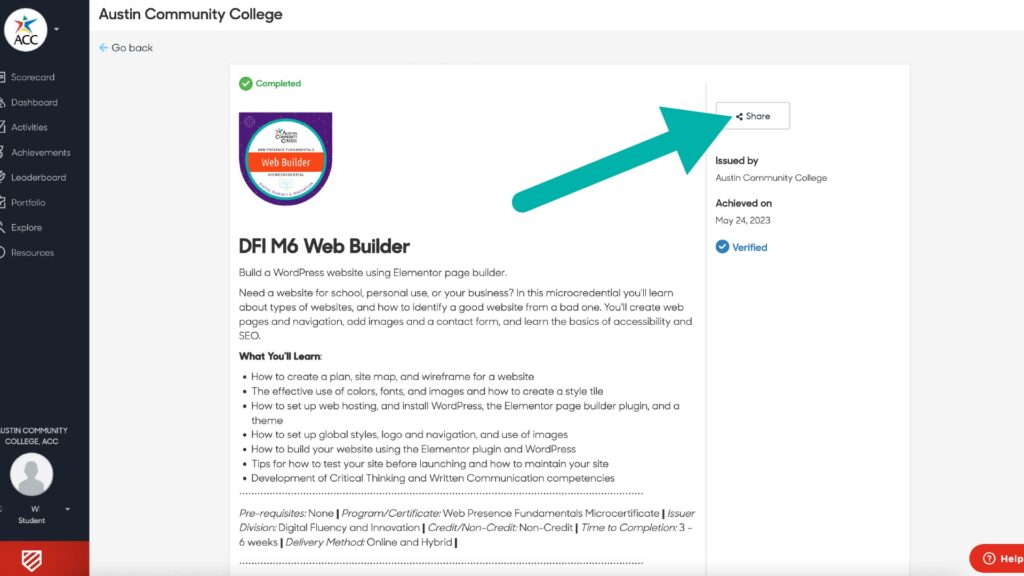
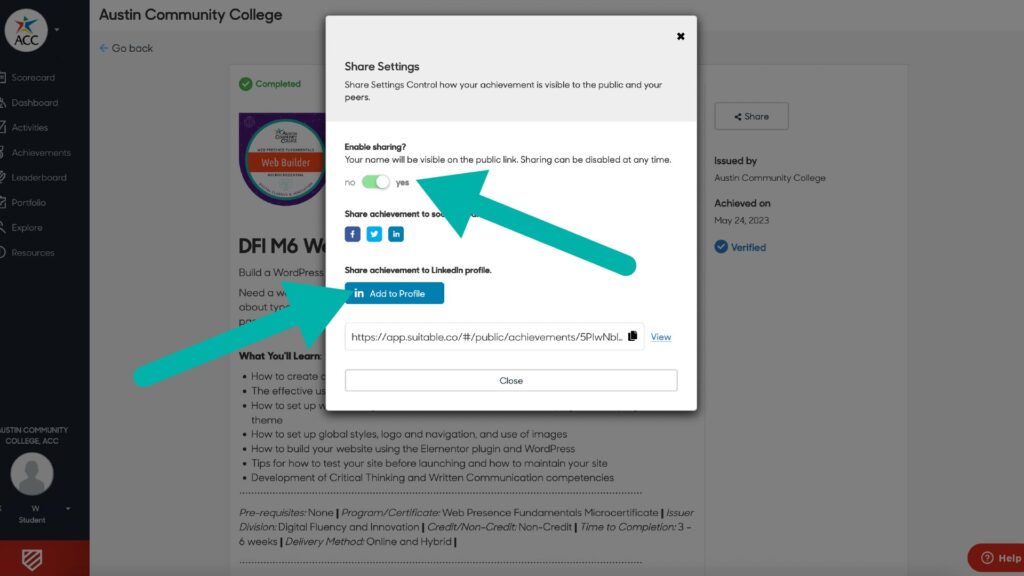
4. Click on the “Share” button.
Clicking on the “Share” button will open up share options.
5. Enable sharing and start the process of adding to LinkedIn profile.
Click on the “Enable sharing” toggle to make the sharing options available, and click on the blue “in Add to Profile” button.
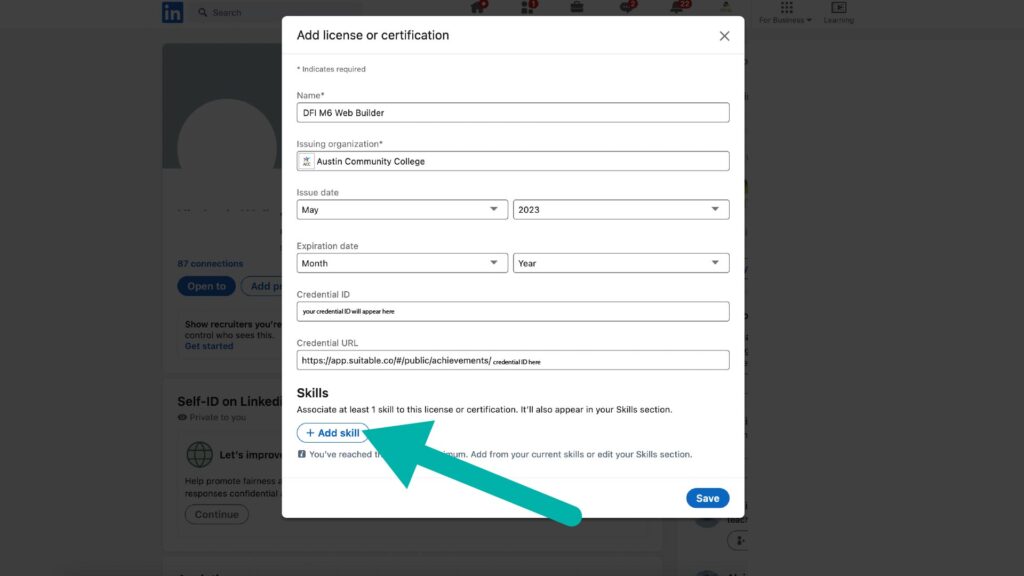
6. Add associated skills to Skills section of LinkedIn profile
Click on the “+ Add skill” button.
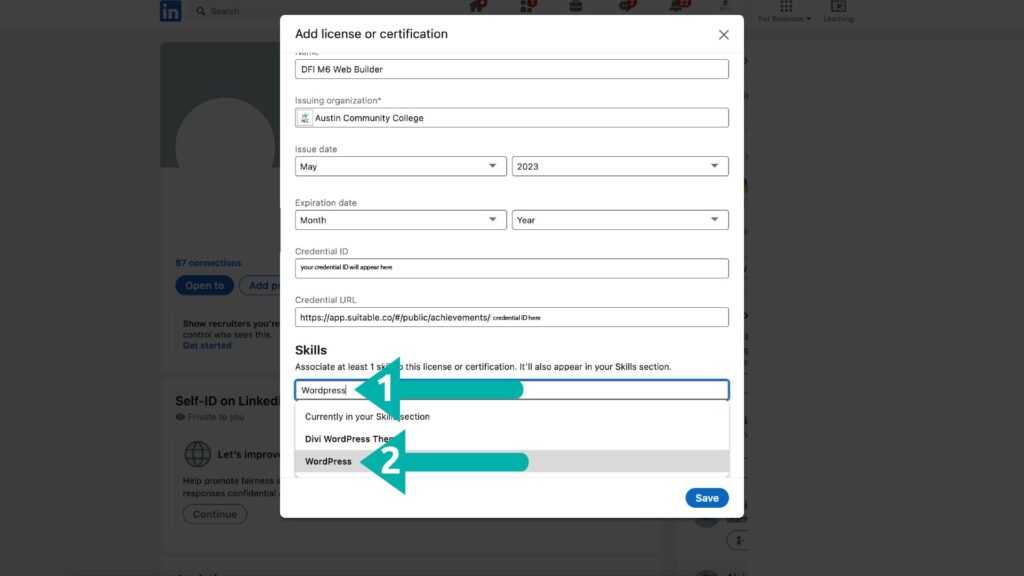
7. Search for skill you want to add
Type a skill associated with your microcredential badge (like word-processing, or MS Word) in the Skill search bar and then select from dropdown options that appear. You may choose more than one skill to associate with your badge.
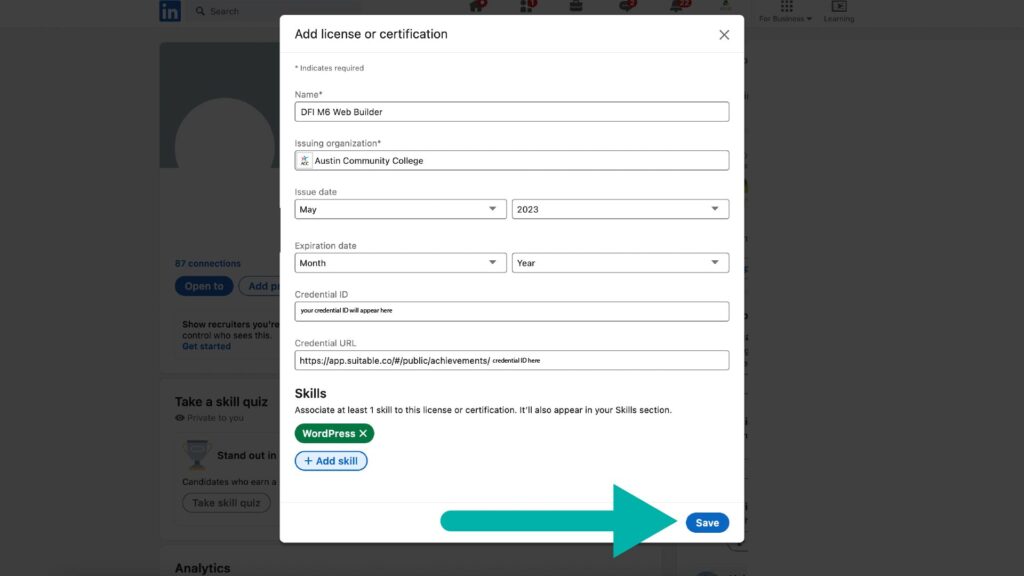
8. Save associated skills
After adding associated skills, they will appear as green buttons that you can delete if you want to change them. Once finished adding skills, click on the blue “Save” button in the lower right corner of the popup window.
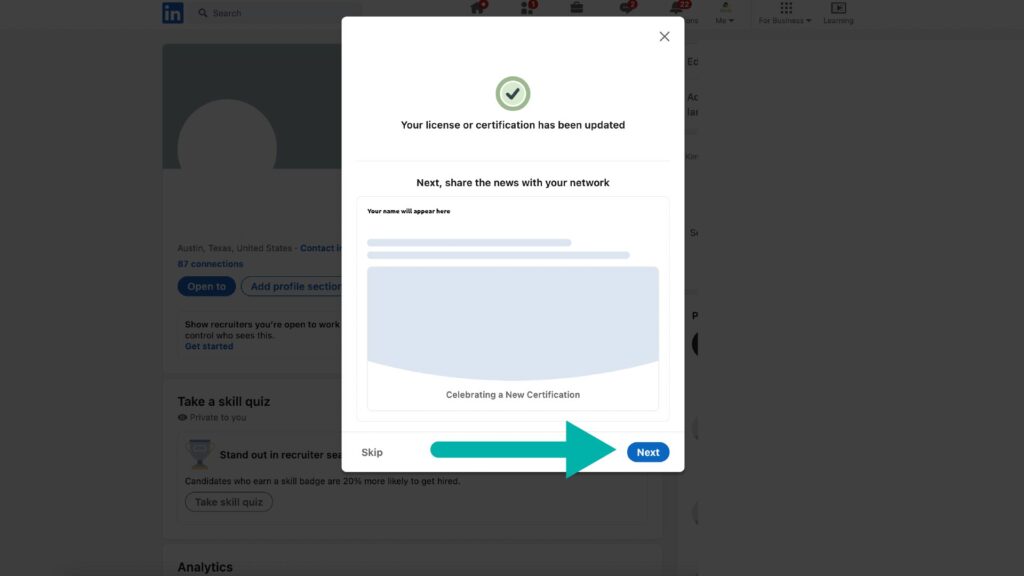
9. View confirmation that badge was successfully added to your profile
Congratulations! You have added your badge to your LinkedIn profile. Click on the blue “Next” button in the lower right corner to share your accomplishment with others.
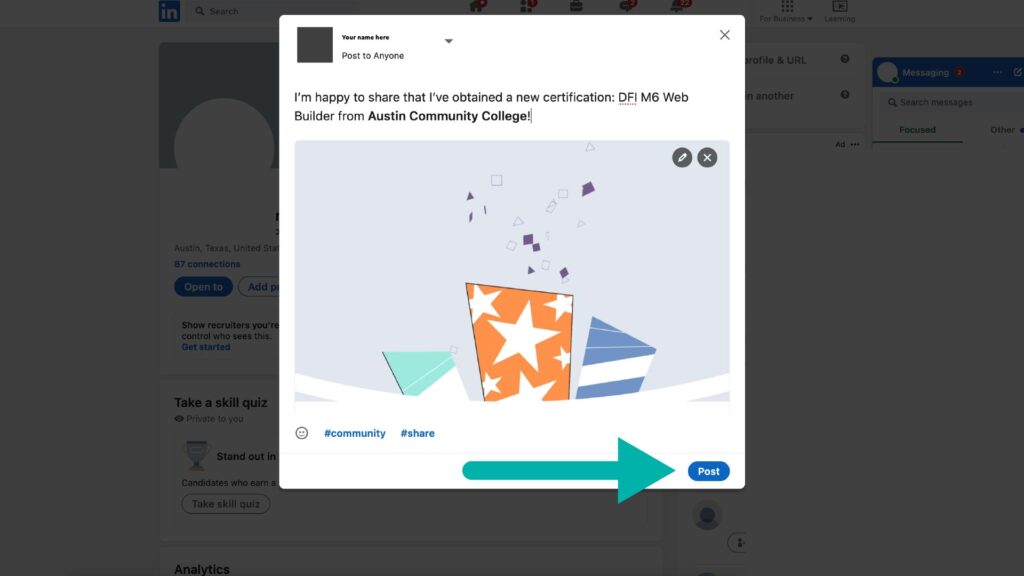
10. View and edit the post you are going to share about your badge
You can edit your celebration post or post as is. Click the blue “Post” button in the lower right corner to post.
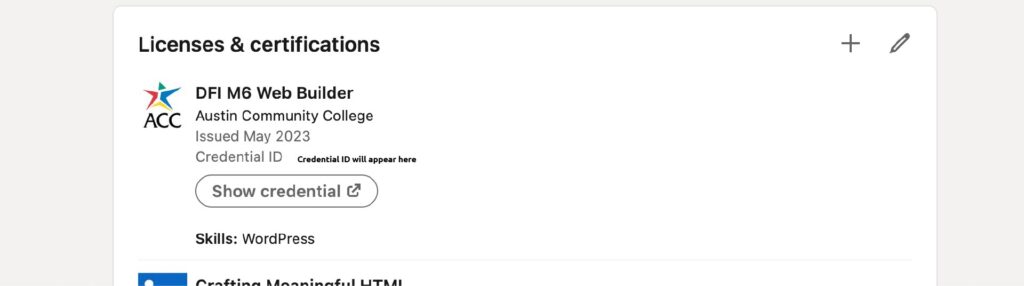
11. View how your new badge looks on your LinkedIn profile
Navigate to your LinkedIn profile and scroll down to “Licenses & certifications” to view your new badge. Clicking on the “Show credential” button will allow you or prospective employers to view the badge information on Suitable.